Setting up Hardal's cookieless analytics is straightforward and takes just a few minutes. This guide shows you how to add the tracking script to your website.
Step 1: Get Your Tracking Script
Navigate to your Hardal dashboard and select the signal you want to set up.
Click Settings in the left menu, then select Setup.
Step 2: Copy the Tracking Script
On the Setup page, you'll see your signal's tracking script. This is the fundamental script that enables cookieless analytics on your website.
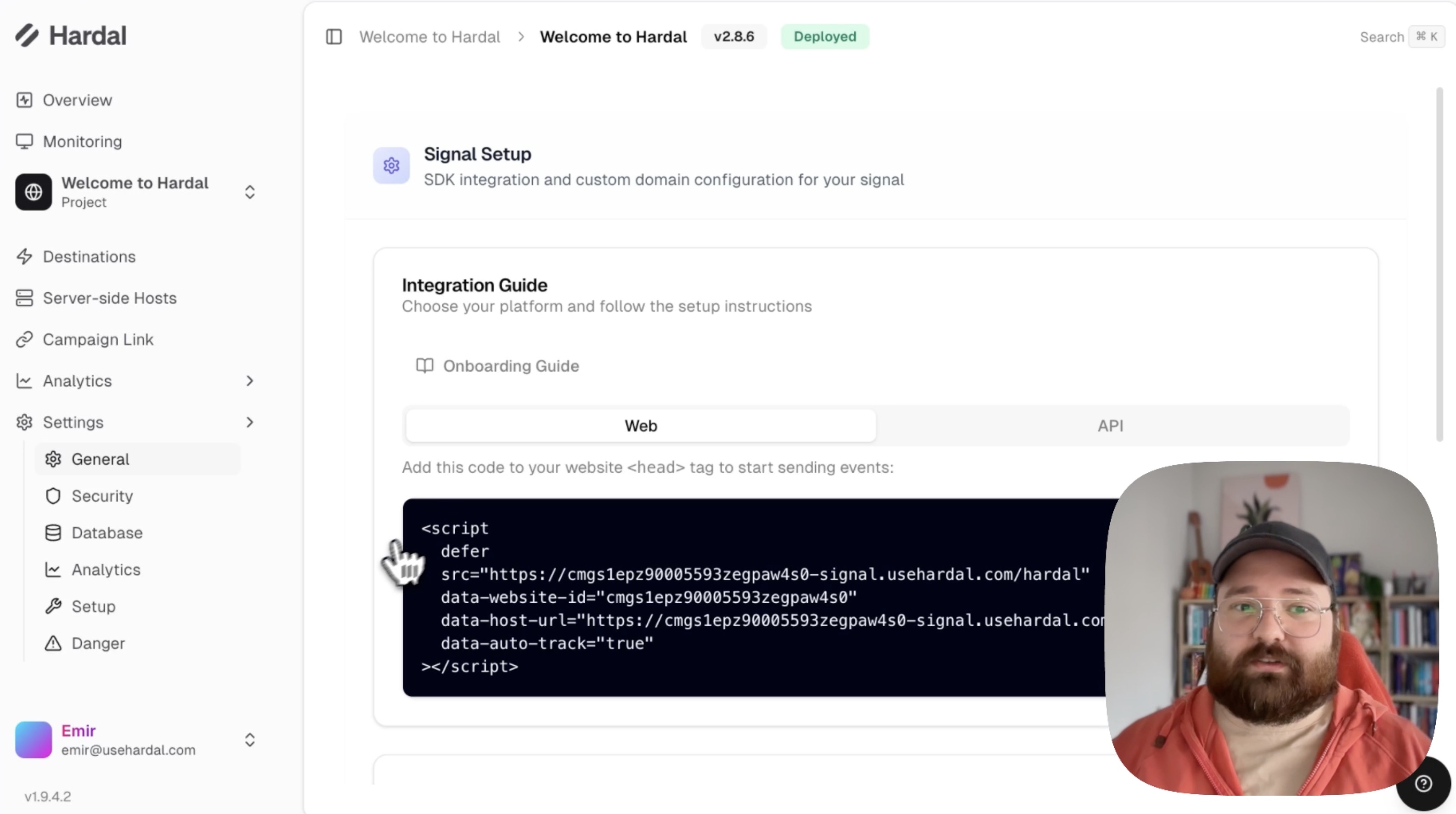
Click to copy the entire script.
Step 3: Add Script to Your Website
Add the copied script to the <head> section of your website's HTML code.
For Standard HTML Sites:
Open your website's HTML file and paste the script inside the <head> tags.
For Content Management Systems (CMS):
Most CMS platforms have a "Header Scripts" or "Custom Code" section where you can paste the script. Common locations:
- WordPress: Appearance > Theme Editor > header.php, or use a plugin like "Insert Headers and Footers"
- Shopify: Online Store > Themes > Edit Code > theme.liquid
- Wix: Settings > Custom Code > Add Code to Head
- Squarespace: Settings > Advanced > Code Injection > Header
Step 4: Verify Installation
After adding the script to your website:
- Save and publish your changes
- Visit your website
- Open your browser's Developer Tools (press F12)
- Go to the Network tab
- Refresh the page
- Look for requests to
hardal.js
If you see successful requests to Hardal, your installation is complete.
Step 5: Check Your Dashboard
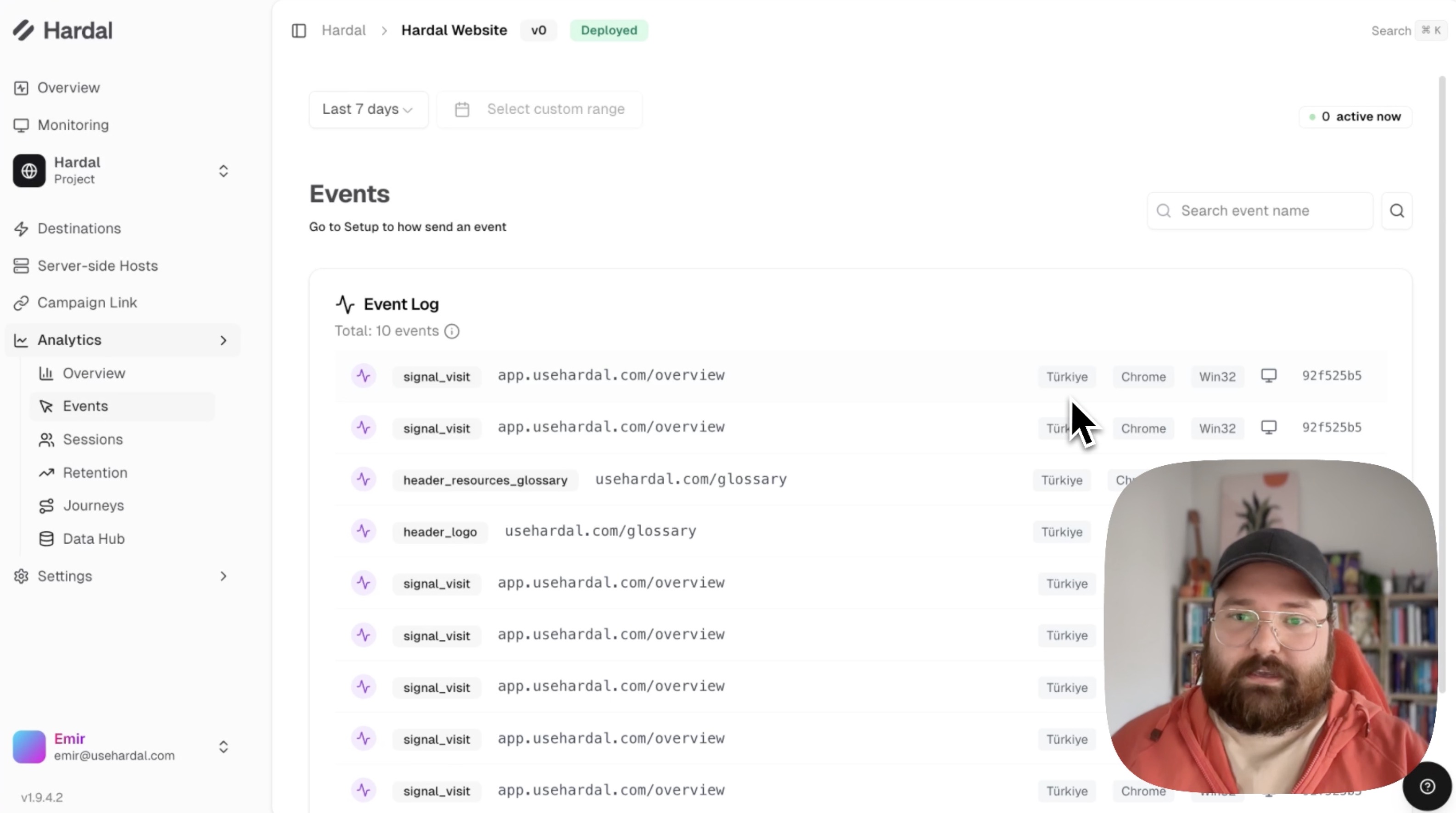
Return to your Hardal dashboard and navigate to Analytics > Events or Overview.
Within a few minutes, you should see data appearing from your website visitors.
Next Steps
Now that basic tracking is set up, consider:
- Setting up custom events to track specific user actions
- Configuring a first-party domain for improved data accuracy
- Implementing user identification for cross-device tracking
- Setting up Google Tag Manager for easier tag management
Your cookieless analytics is now active and tracking visitors without using cookies, ensuring privacy compliance and accurate data collection.
For a more detailed walkthrough, check out our step-by-step guide. How To Set Up Hardal