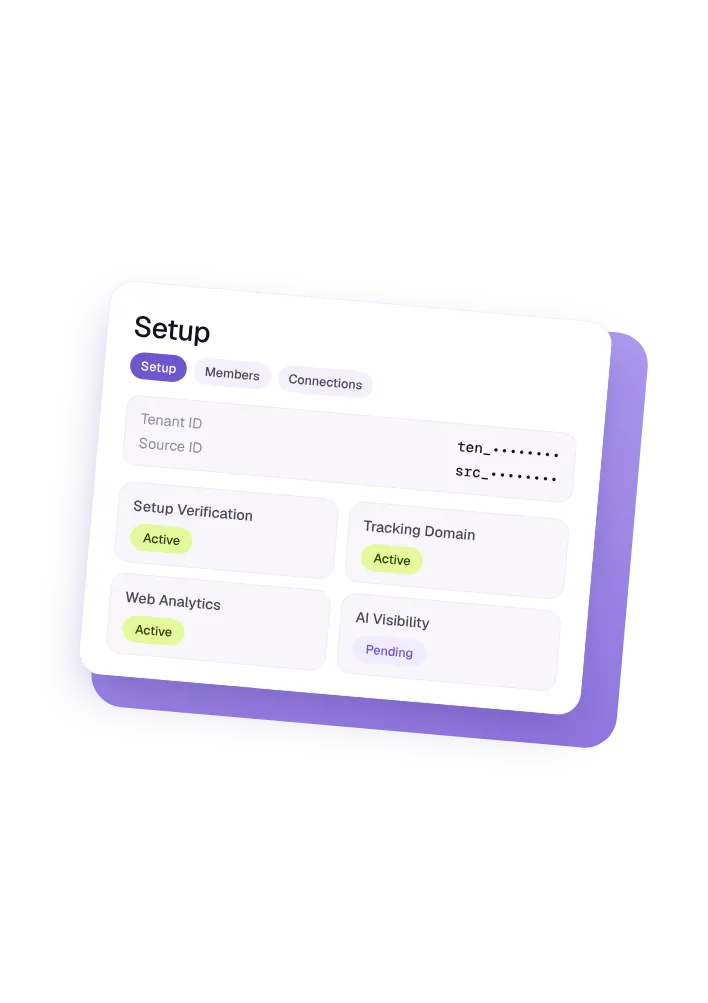
Managing sources, tenants and organizations in Hardal used to mean clicking through multiple sidebar sections and remembering where each piece of configuration lived. Finding your tenant ID or source ID meant expanding the right accordion inside the Setup page, and figuring out whether your tracking was actually working required checking several separate screens.
That changes with the redesigned Manage experience.
What changed
The sidebar now has a single Manage group that contains three entries: Setup, Members and Connections. This replaces the previous Configure and Organization groups.
Setup is the new home for Sources, Tenants and Organizations. When you open Setup, you see tabs at the top. Each tab shows a list where you can create, edit, archive and reactivate items. Clicking a source's Setup button opens the installation screen for that source.
Members has its own page now instead of living inside Settings. Use it to invite teammates, change roles and manage access.
Connections replaces Settings. It holds API keys and connected apps.
The old URLs for /sources, /tenants, /organizations, /settings and /onboarding still work. They redirect to the new locations, so bookmarks and shared links continue to function.
The "Continue onboarding" banner that used to appear above every dashboard page is gone. The sidebar is cleaner, and you can still find your way to setup when you need it.
Four live status cards
When you select a source in Setup, four status cards appear above the Installation section:
-
Setup Verification tells you whether your tracker script is sending events. A verification check runs when you click the refresh button, and the card shows the result immediately.
-
Tracking Domain shows the status of your custom collection hostname. If you have set up a tracking domain, this card confirms whether DNS is verified and the domain is active.
-
Web Analytics shows whether page views and sessions are arriving. The card displays when the last event came in, so you can tell at a glance if something has stopped working.
-
AI Visibility shows whether AI agent traffic (ChatGPT, Perplexity, Claude and others) is being recorded. This card checks for recent agent visits independently of regular web traffic.
Each card has a refresh button. Owners and admins can re-run checks without leaving the page. The cards update without blocking the installation content, so a slow verification does not hold up the rest of the screen.
Copyable tenant and source IDs
Your tenant ID and source ID now appear in the Installation panel header, right next to the title. Each has a copy button. Click the value or the icon to copy the full ID to your clipboard.
This saves the time you used to spend expanding the Tracker step, scrolling down and finding the IDs buried inside the accordion. If you are sharing setup details with a developer or support, you can copy both IDs in seconds.
On narrow screens, the IDs move below the title and stay on one line each. If an ID is too long to fit, it truncates visually, but the copy button still copies the complete value.
Empty reports guide you forward
When a report has no data in the last 30 days, it now shows a setup guide instead of an empty chart. The guide links directly to your source's installation steps, so you can fix the issue without hunting through menus.
This applies to Overview, Acquisition, Engagement (Sessions, Pages and Events), Commerce and AI Visibility reports. The check ignores your selected date range, so even if you are looking at a narrower window, the report will tell you if the underlying data stream is empty.
For Funnels, the same logic applies with an extra step. If your sources have web activity but you have not defined any funnels yet, you see a "Create your first funnel" card with a sample funnel layout and a button to open the funnel creation dialog.
Why this helps
Three things get easier with this redesign.
Onboarding goes faster. A new team can land on Setup, create a source, install the tracker, verify it works and see the status cards turn green, all on one page. The old flow required jumping between Onboarding, Sources and Setup, and there was no immediate feedback about whether the installation succeeded.
Troubleshooting is clearer. If your reports stop showing data, the first step is usually "did events stop coming in?" Now you can answer that question from the status cards without digging into Events or running manual queries.
Day-to-day management is consolidated. Sources, tenants, organizations, members and connections are all reachable from one sidebar group. You do not need to remember which submenu holds which configuration.
How to use it
- Open the sidebar and click Setup under the Manage group.
- Use the tabs at the top to switch between Sources, Tenants and Organizations.
- Click a source's Setup button to open its installation screen.
- Review the four status cards. If any shows a warning, click the refresh button to re-run the check.
- Find the tenant ID and source ID in the Installation panel header. Click either value to copy it.
- Use Members to manage team access and Connections to manage API keys and connected apps.
If you open an empty report and see a setup guide, follow the link to your source's installation steps. Once events start arriving, the guide disappears and your report shows real data.
Available in both languages
The redesigned experience works in English and Turkish. Sidebar labels, status card messages and empty-state guides are all localized.
What comes next
This redesign is part of a broader effort to make Hardal easier to set up and maintain. If you are setting up a custom tracking domain, there is now a clearer path from DNS verification to SSL registration, and the Tracking Domain card will show you each step's status.
For more on how to get started with Hardal, see How to Set Up Hardal or Hardal Analytics Overview.
Hardal is the first-party data and agentic analytics platform. We help enterprises send accurate signals to their ad platforms and grow revenue, using server-side data from their websites, mobile apps and AI agents.