Hardal's Events and Sessions pages provide detailed insights into individual user interactions and browsing sessions. This guide explains how to use these features for in-depth analytics.
Accessing the Events Page
Navigate to your Hardal dashboard, select your signal, and click Analytics > Events from the left menu.
Understanding the Events Page
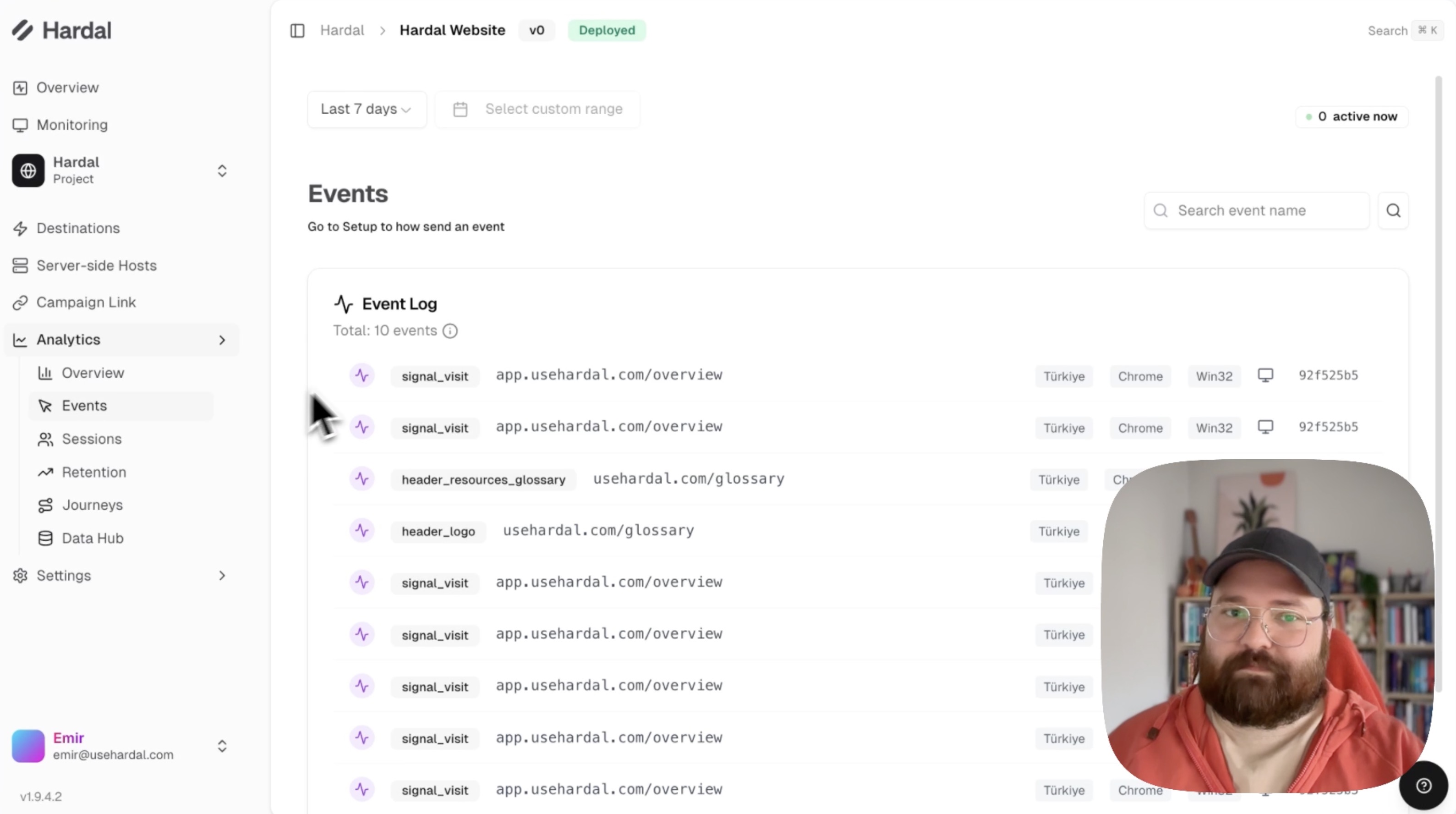
The Events page displays your most recent events in real-time, showing:
- Event Name: The type of event (e.g., page_view, purchase, button_click)
- URL Path: The page where the event occurred
- Country: Geographic location of the user
- Browser: Browser used (Chrome, Firefox, Safari, etc.)
- Operating System: User's OS (Windows, macOS, iOS, Android, etc.)
- Device Type: Desktop, Mobile, or Tablet
Viewing Session Details
Each event row includes a Session button. Clicking this button takes you directly to the full session details for that user.
Exploring the Sessions Page
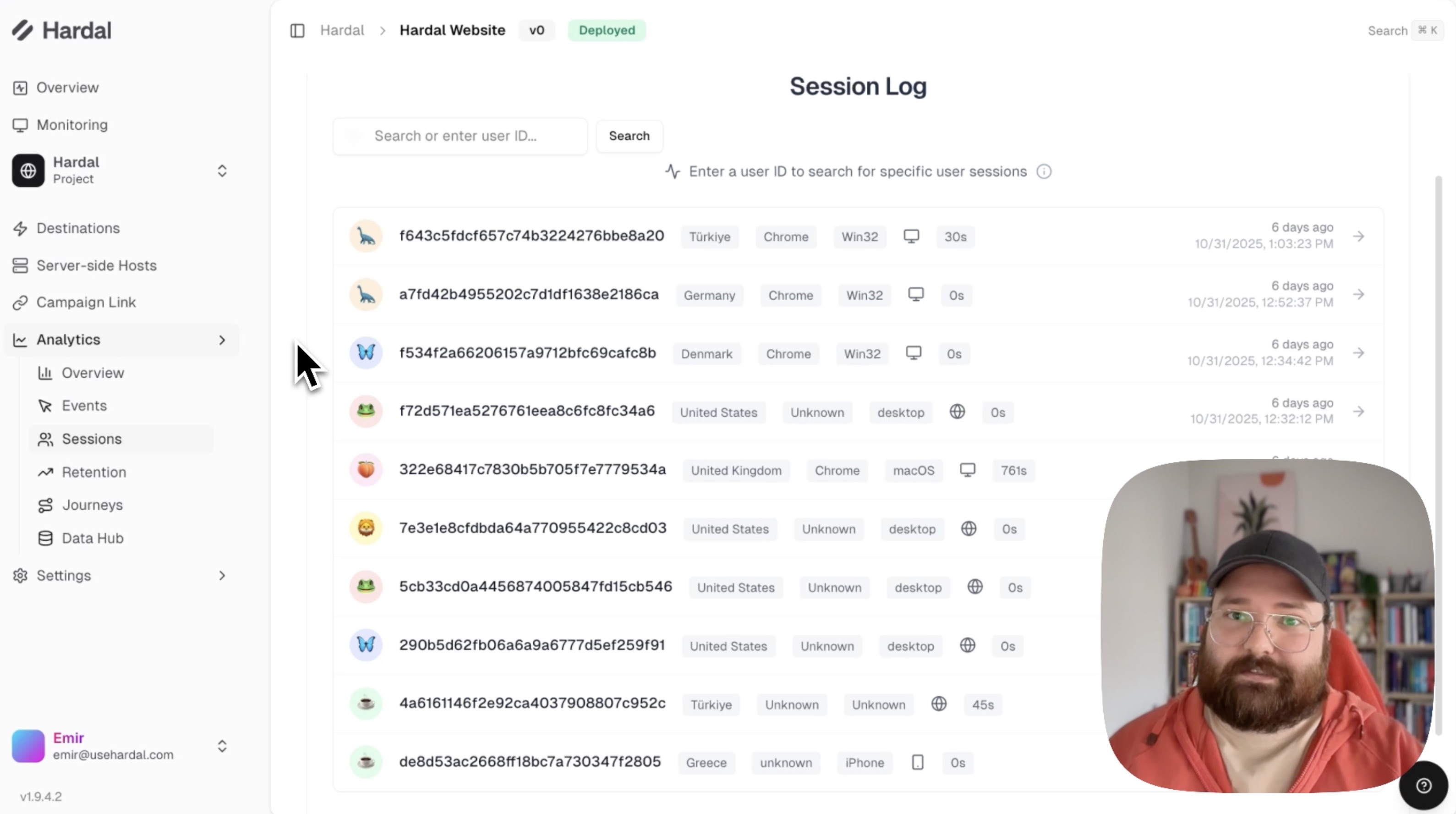
Click Analytics > Sessions to view a list of all recent browsing sessions.
Session Overview
The Sessions page displays:
- Session IDs
- Number of events in each session
- Start time of each session
- User device information
- Geographic location
Click on any session to view its detailed information.
Detailed Session Information
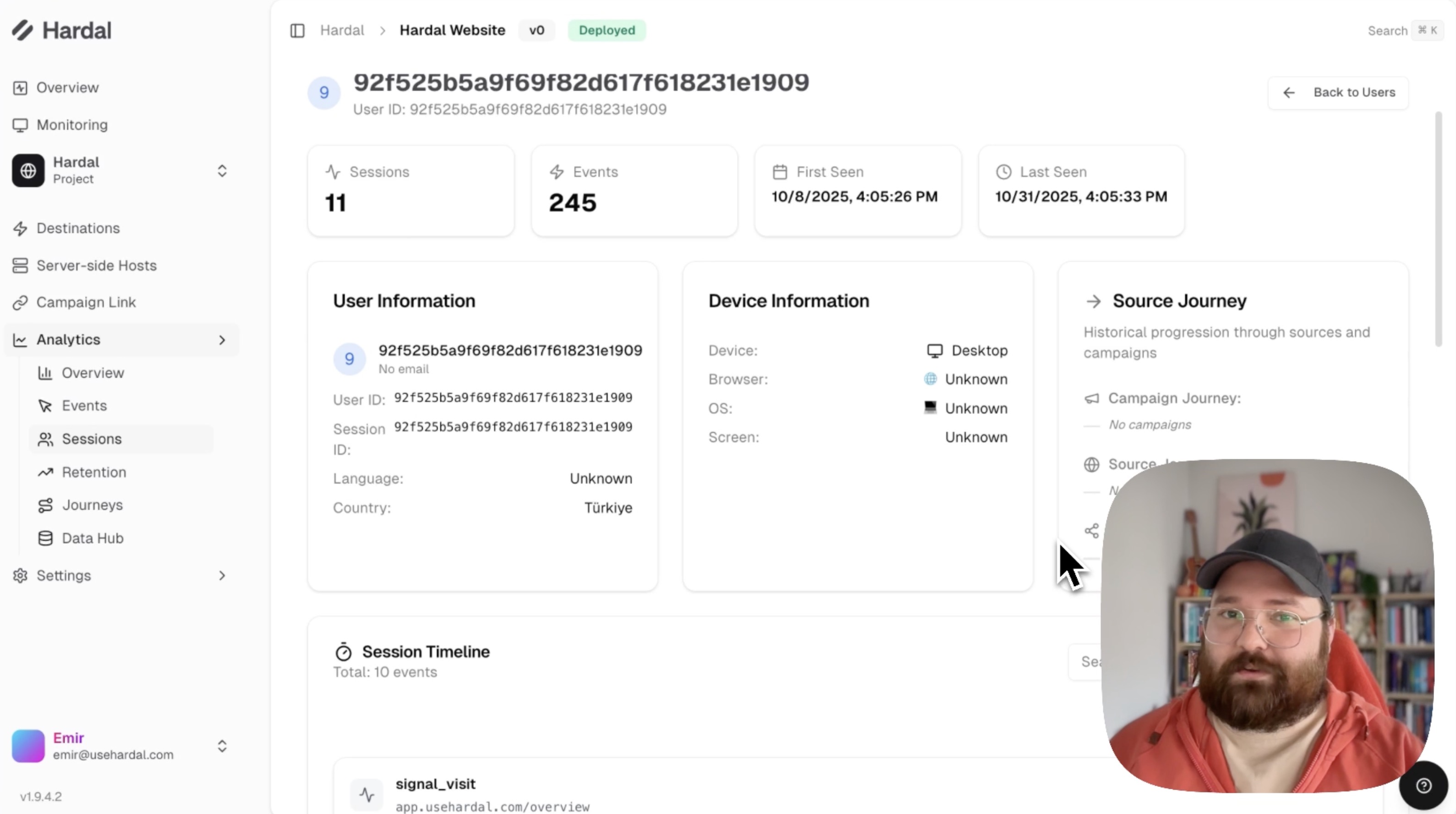
When you open a specific session, you'll see comprehensive information divided into several sections:
User Information
- User ID: Unique identifier for the user
- Session Count: Total number of sessions for this user
- Event Count: Total events in this session
- First Seen: When the user first visited your site
- Last Seen: Most recent activity
Marketing Attribution
If the user arrived from a marketing campaign, you'll see:
- Source: Where the user came from (e.g., google, facebook)
- Medium: Marketing medium (e.g., cpc, organic, social)
- Campaign: Campaign name
This information helps you understand which marketing efforts drive traffic and conversions.
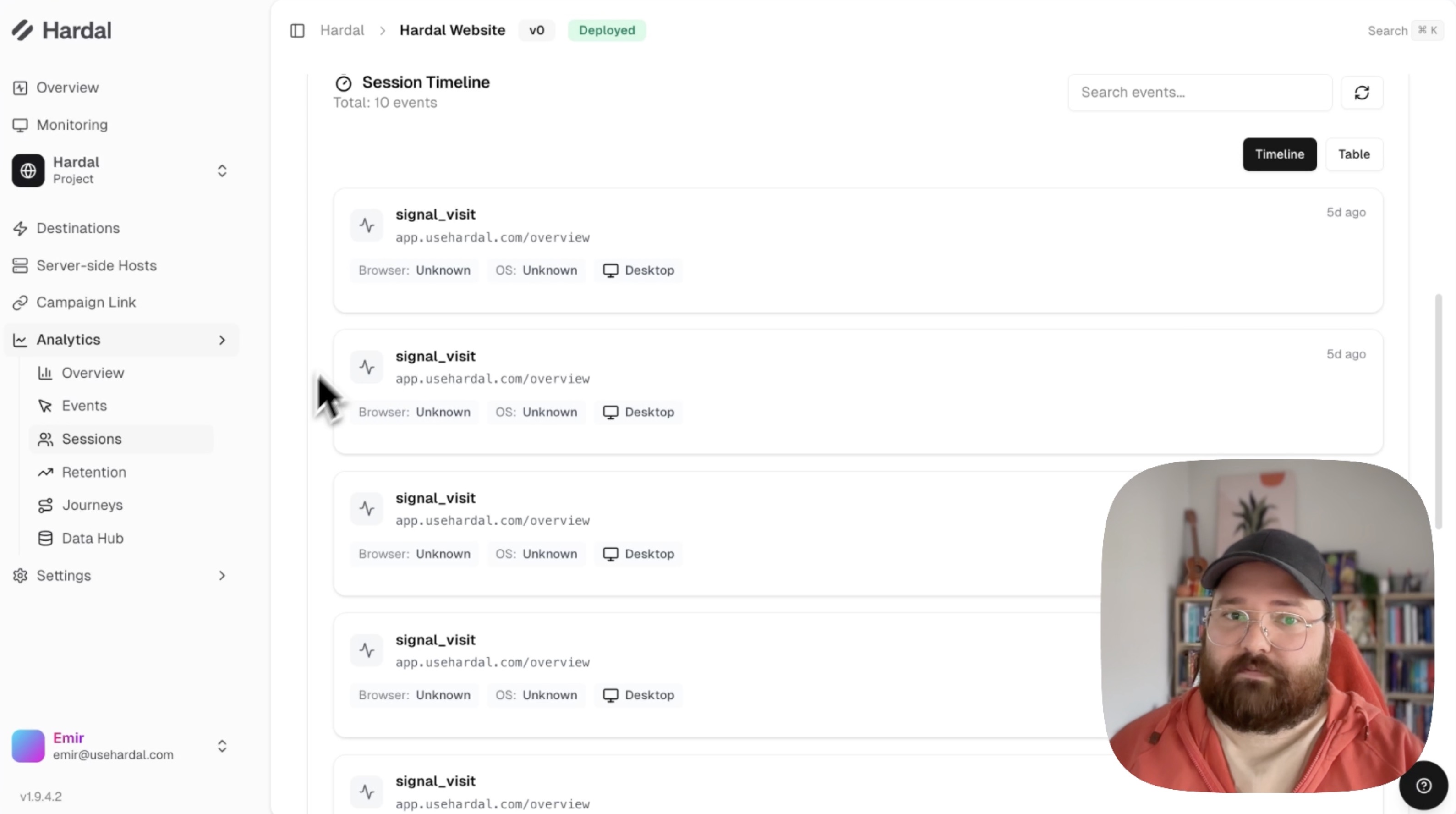
Event Timeline
Scroll down to see a chronological list of all events in the session. Each event shows:
- Event name
- Timestamp
- URL where it occurred
- Any custom properties associated with the event
This timeline helps you understand:
- User navigation patterns
- Time spent on each page
- Interaction sequences
- Conversion paths
Practical Use Cases
For Events Page:
- Monitor real-time user activity
- Identify technical issues (e.g., error events)
- Track custom event performance
- Quick access to session context
For Sessions Page:
- Analyze complete user journeys
- Understand conversion paths
- Identify drop-off points
- Evaluate marketing campaign effectiveness
- Debug tracking issues
These features provide granular insights into how individual users interact with your website, enabling data-driven optimization decisions.
For a more detailed walkthrough, check out our step-by-step guide. Hardal Dashboard - Events and Sessions