TikTok Events API Gateway enables server-side tracking for your TikTok pixel, improving data accuracy and overcoming browser limitations. This guide shows you how to set it up through Hardal.
Prerequisites
Before starting, ensure you have:
- Active Hardal account with a configured signal
- TikTok Ads account with an active pixel
- Admin access to your TikTok Ads Manager
Step 1: Access Server-Side Hosts
Navigate to your Hardal dashboard and select your signal. Click Server Side Hosts in the left menu.
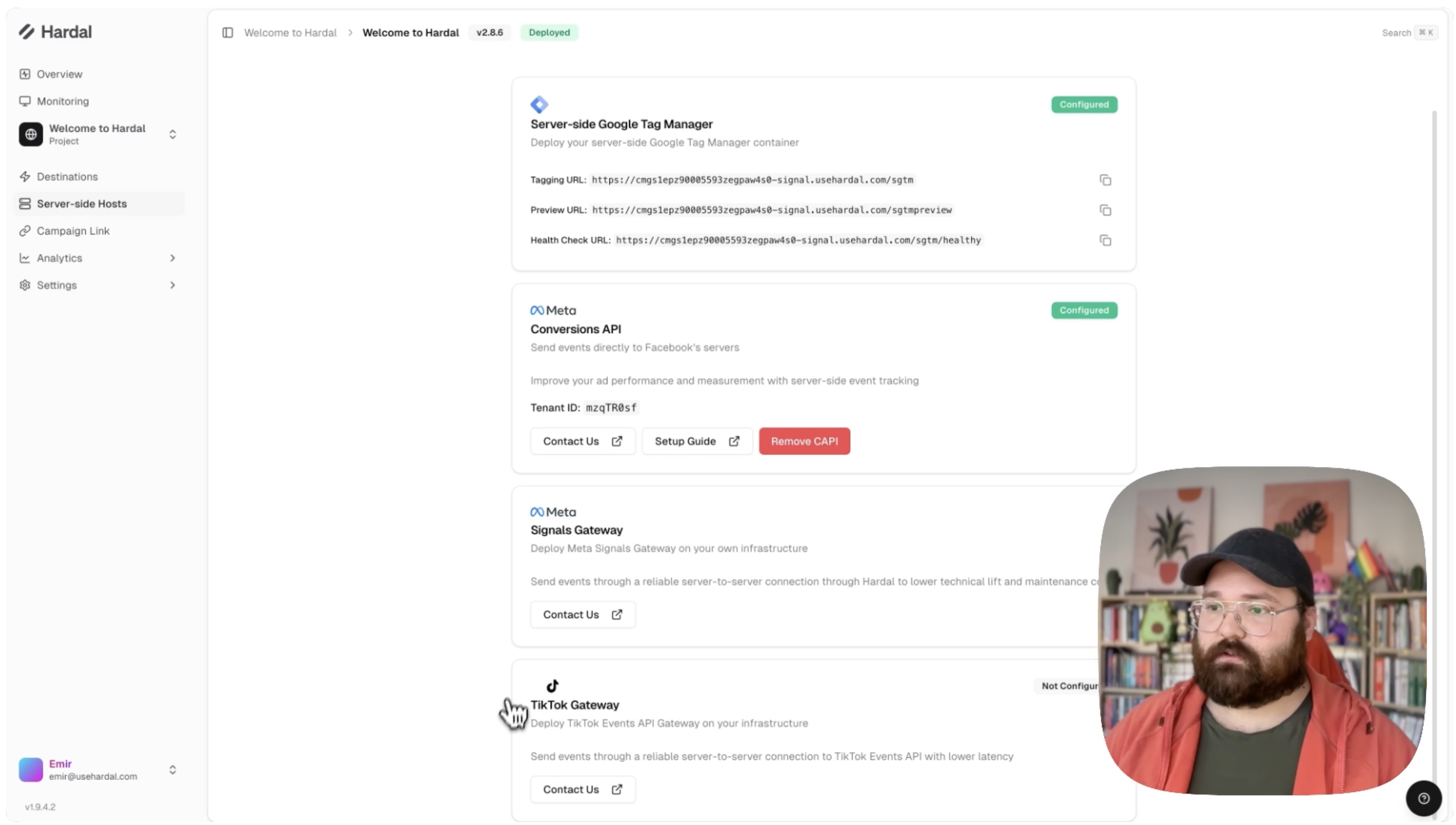
You'll see the TikTok Gateway option showing as "not configured."
Step 2: Request TikTok Gateway Activation
TikTok Events API Gateway needs to be enabled by the Hardal team before you can use it.
Contact Hardal Support:
- Email: support@usehardal.com
- Specify: "Enable TikTok Events API Gateway for [your signal name]"
- Include your signal ID if available
Hardal team will enable this feature for your account, typically within 1 business day.
Step 3: Receive Email Invitation
After activation, you'll receive an email invitation from TikTok Events API Gateway. This email contains a link to the TikTok Events API Gateway dashboard.
Click the link in the email to access the gateway configuration panel.
Step 4: Connect Your Data Source
In the TikTok Events API Gateway dashboard:
- You'll see your signal name displayed
- Click the Connect Data Sources button
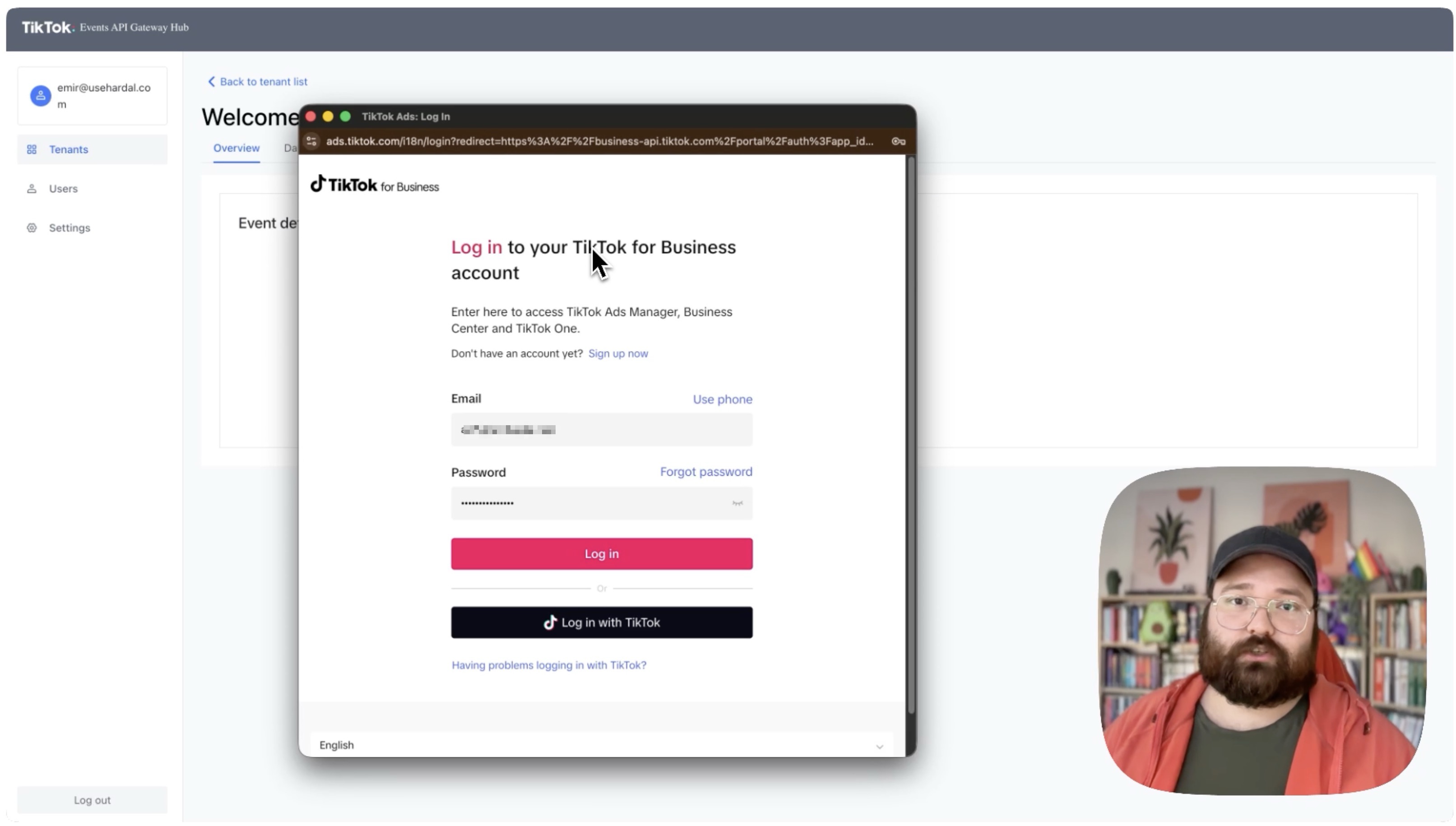
Choose the pixel associated with your website or campaign.
Step 6: Complete Connection
After authentication and pixel selection:
- Review the connection details
- Confirm the connection
- Wait for the configuration to complete
Your TikTok pixel will now automatically work through the TikTok Events API Gateway, sending events from both client-side and server-side.
Verify Your Setup
To confirm everything is working:
In TikTok Events Manager:
- Go to TikTok Events Manager
- Select your pixel
- Check for incoming events
- Look for the "Events API" source indicator
Benefits of TikTok Events API Gateway
Using TikTok Events API Gateway provides:
- Improved Data Accuracy: Bypass browser restrictions and ad blockers
- Server-Side Tracking: More reliable event delivery
- Better Attribution: Enhanced conversion tracking
- Reduced Data Loss: Events sent directly from server to TikTok
- iOS 14.5+ Support: Better tracking on iOS devices
Next Steps
Now that your TikTok Gateway is set up, consider:
- Setting up first-party domain for TikTok for improved tracking
- Configuring custom events for specific campaign objectives
- Testing event transmission with TikTok's Event Debugger
- Setting up conversion tracking for your TikTok ad campaigns
Your TikTok pixel is now enhanced with server-side tracking capabilities through Hardal's gateway infrastructure.
For a more detailed walkthrough, check out our step-by-step guide. How To Set Up Tiktok Events API Gateway with Hardal