Quick answer: Pick a subdomain you own, then add the CNAME and TXT records from your Events API Gateway dashboard. Once both records verify, set the domain as primary if required and test browser and server events.
This guide shows how to connect a first-party domain to TikTok Events API (eAPI) through Hardal. Keep your current DNS resolver. Public TikTok DNS addresses, fixed IP addresses, and lists of tiktok.com domains are not part of this setup.
What is TikTok DNS setup for Events API?
Here, TikTok DNS means the records that connect an advertiser-owned subdomain, such as eapi.example.com, to TikTok Events API Gateway. Your computer, phone, and router keep their existing DNS resolvers.
The setup has two jobs:
- A CNAME record routes the chosen subdomain to the gateway target.
- A TXT record proves that you control the domain.
The gateway generates the hostnames and values for your account. Copy them from your own gateway. Another site's target or verification token will not verify your domain.
Before you configure the TikTok domain
You need:
- A TikTok Events API Gateway configured and active in Hardal
- Access to the DNS zone for your website domain
- Permission to manage the connected TikTok Pixel or dataset
- Help from your IT or infrastructure team if another team owns DNS
If the gateway is not active yet, complete the TikTok Events API Gateway setup guide first.
Step 1: Open the TikTok Events API Gateway
In Hardal, select the relevant signal and open Server Side Hosts. Confirm that TikTok Gateway is configured and active, then follow its link to the TikTok Events API Gateway dashboard.
Open the gateway tied to the TikTok Pixel or dataset you want to track. Otherwise, you will configure the wrong connection.
Step 2: Start the domain setup
In the TikTok Events API Gateway dashboard:
- Open Settings.
- Select Set up domain.
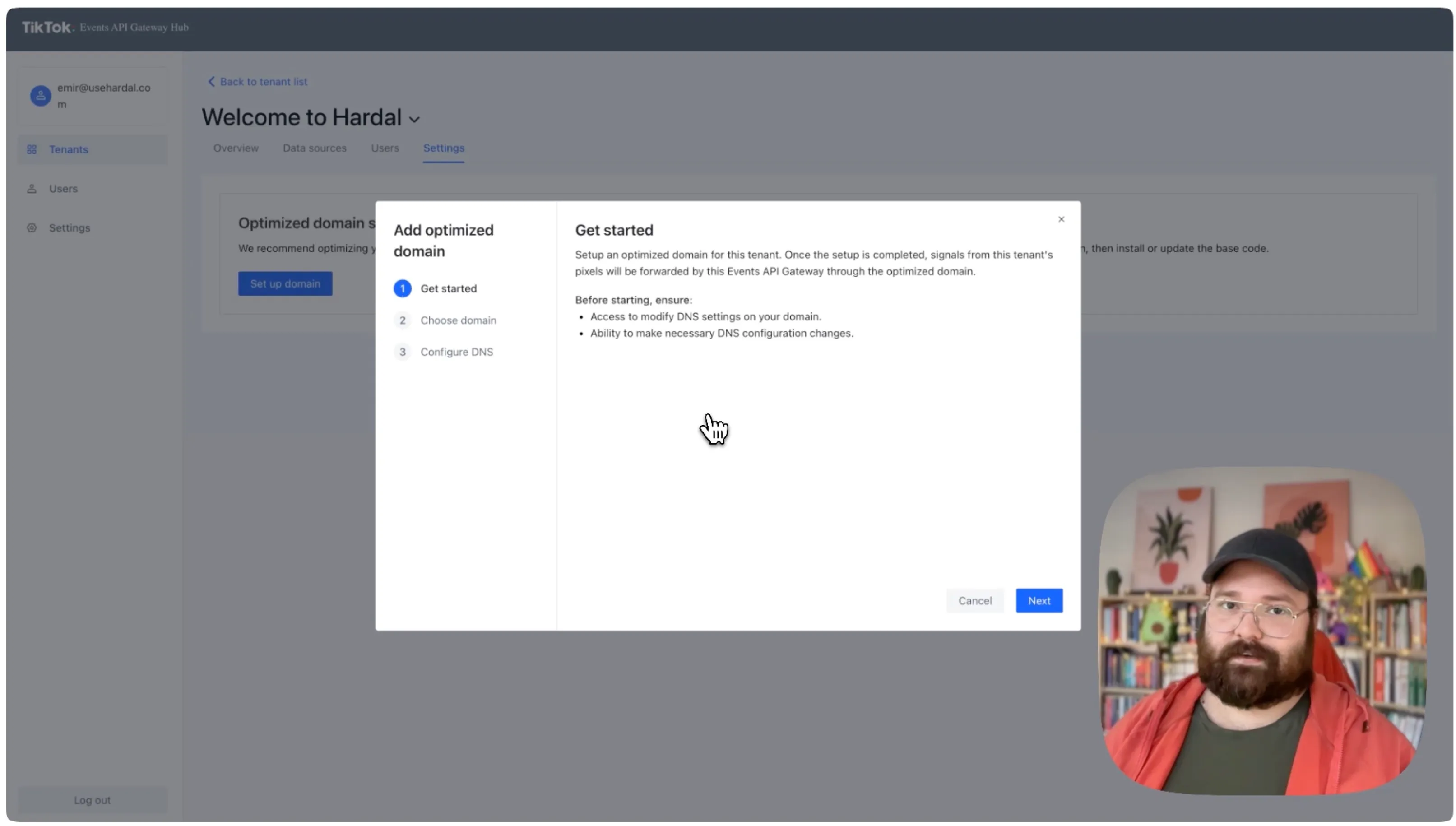
- Review the domain requirements and click Next.
Step 3: Choose a first-party TikTok domain
Use a dedicated subdomain of a domain your business controls. For example:
eapi.example.com
Any of these work:
tiktok.example.comevents.example.comtracking.example.com
Enter the hostname only, with no https://, trailing slash, or path. Use a dedicated subdomain so the CNAME does not collide with the records serving your main website.
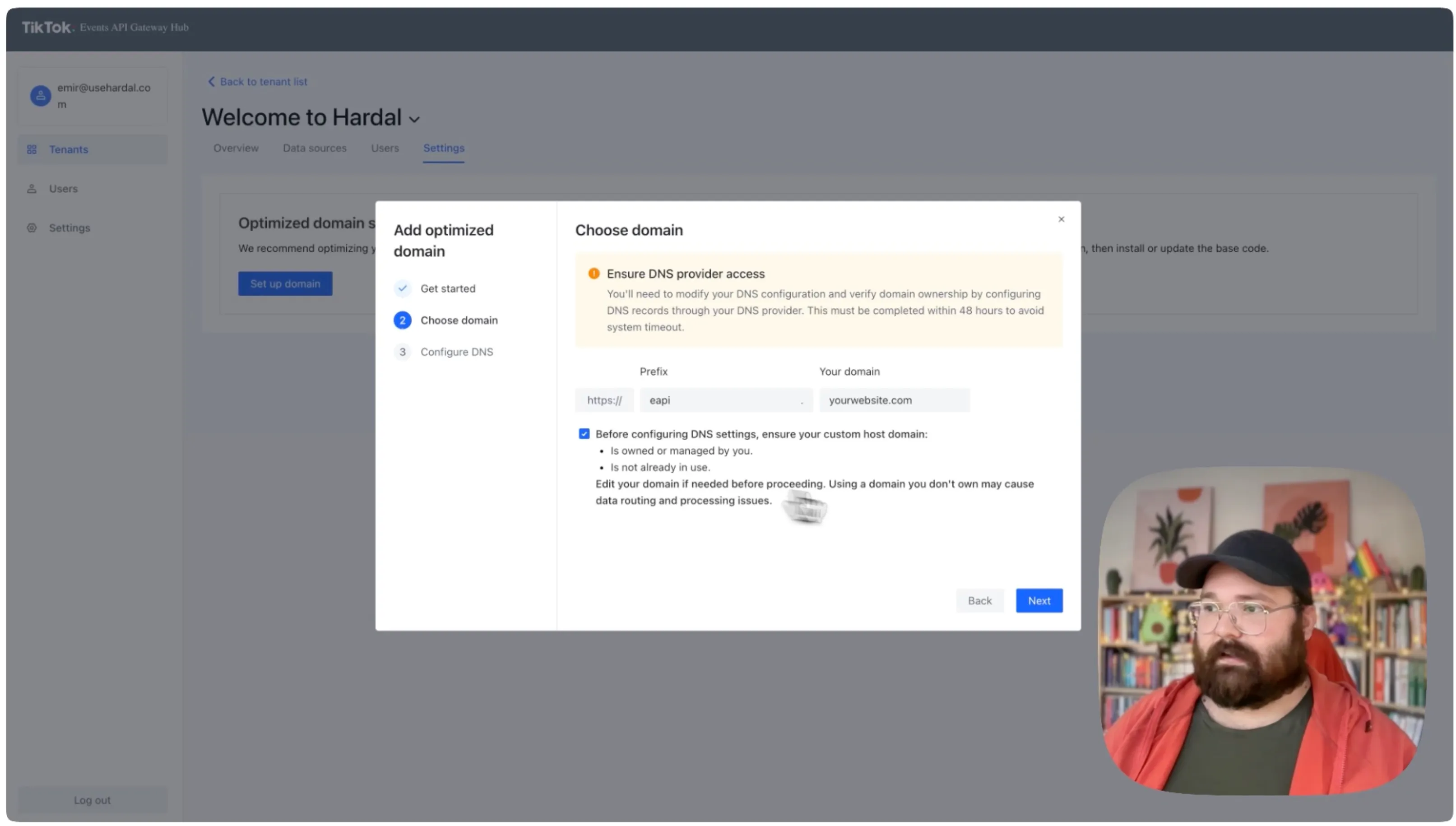
If the dashboard offers Set as primary domain, select it to route supported TikTok Pixel requests through this endpoint. Click Next to generate the DNS instructions.
Step 4: Copy the TikTok DNS records
Hardal's setup flow generates two records, a CNAME and a TXT verification record.
| Record | Purpose | What to copy |
|---|---|---|
| CNAME | Routes your tracking subdomain to the gateway | The host or name and target shown in the dashboard |
| TXT | Verifies control of the domain | The verification host or name and token shown in the dashboard |
Copy every character exactly. Never copy record values from a screenshot or another setup. Use the values in your gateway.
This flow does not use an A record or fixed TikTok DNS server IP. Add one only if your gateway explicitly asks for it.
Step 5: Add the records at your DNS provider
Log in to the service that hosts your domain's authoritative DNS. Your DNS host and domain registrar may be different companies. Common hosts include Cloudflare, GoDaddy, Namecheap, and Route 53.
For each record:
- Select the record type shown by the gateway.
- Paste the Name or Host value.
- Paste the Target, Content, or Value.
- Leave TTL on Automatic or use your provider's default.
- Save the record.
DNS control panels handle hostnames differently. Some expect only the label, such as eapi, and append example.com automatically. Others accept the complete hostname. Check the preview before saving so you do not accidentally create eapi.example.com.example.com.
If your DNS provider can proxy CNAME traffic, match the setting shown by the gateway. When the gateway requires direct DNS resolution, leave the record DNS-only.
Step 6: Verify DNS propagation
Return to the gateway and wait for both records to show as verified. Many changes appear within minutes. Old answers can remain cached until the record's TTL expires.
You can inspect the public DNS response before retrying verification:
dig CNAME eapi.example.com +short
For the TXT record, query the exact verification hostname shown in the dashboard:
dig TXT <verification-hostname> +short
On Windows, use:
nslookup -type=CNAME eapi.example.com
nslookup -type=TXT <verification-hostname>
The CNAME result should match the gateway target. The TXT result should contain the verification token. These lookups confirm that the records are public. The gateway still decides whether the setup passes.
Step 7: Activate the first-party domain
Once the CNAME and TXT records pass verification:
- Confirm the domain setup in the gateway.
- Set the domain as primary if that is part of your configuration.
- Wait for the gateway to finish provisioning before testing traffic.
Step 8: Test TikTok Pixel and Events API traffic
Check the browser request first:
- Open your website in a new browser tab.
- Open developer tools and select Network.
- Reload the page and trigger a test event.
- Filter for your custom hostname, such as
eapi.example.com. - Confirm that the request completes without a DNS, certificate, or HTTP error.
Then check the data connection in TikTok Events Manager:
- Select the relevant Pixel or dataset.
- Open Test events.
- Trigger a test conversion on the website.
- Confirm that the browser and Events API events appear.
- Review diagnostics for missing parameters or connection errors.
TikTok recommends using Pixel and Events API together for website conversions. When both connections send the same conversion, pass a shared event ID and confirm deduplication so TikTok does not count the event twice. Read TikTok's official Events API guidance for the current connection recommendations.
TikTok DNS troubleshooting
| Problem | What to check |
|---|---|
| CNAME not found | Check whether the DNS provider appended the root domain twice. Confirm that you added the record at the authoritative DNS host, not an inactive panel at the registrar. |
| CNAME conflict | A CNAME cannot share a hostname with an A or AAAA record. Pick a new subdomain, or remove the conflicting record after confirming that no other system uses it. |
| TXT record will not verify | Compare the TXT hostname and token with the gateway. Remove quotation marks you added yourself, but leave any quotes the DNS provider displays automatically. |
| Public DNS works, gateway still pending | Retry after the gateway's next verification check. Public resolvers and the gateway may see different cached answers until the old TTL expires. |
| Domain verifies, requests fail | Check the browser Network panel. DNS_PROBE_FINISHED_NXDOMAIN points to DNS, a certificate warning points to TLS provisioning, and a 4xx or 5xx response means the request reached an HTTP service. |
What a first-party domain does
The first-party domain puts the gateway endpoint under a hostname your business owns. Browser requests go to eapi.example.com instead of a vendor hostname.
DNS handles that routing. Parameters, match keys, consent handling, and Pixel and Events API deduplication determine whether the resulting data is useful.
When the domain passes verification, run one test conversion and confirm that it appears in TikTok Events Manager. If the gateway itself is not ready, follow the Hardal setup guide or watch the step-by-step video.