Server-Side Google Tag Manager (sGTM) provides improved performance, better data control, and enhanced security. This guide shows you how to set it up using Hardal's infrastructure.
What is Server-Side Google Tag Manager?
Server-Side GTM processes tags on a server instead of in the browser, offering:
- Improved Page Speed: Reduced client-side JavaScript
- Better Data Quality: Bypass ad blockers and browser restrictions
- Enhanced Security: Server-side data processing
- Greater Control: Manage data before sending to third parties
- Privacy Compliance: Better control over user data
Prerequisites
Before starting, ensure you have:
- Active Hardal account with a configured signal
- Google Tag Manager account
- Existing web container (optional, but recommended)
Step 1: Get Your Server URLs from Hardal
Navigate to your Hardal dashboard and select your signal. Click Server Side Hosts in the left menu.
You'll see two URLs for your Server-Side GTM:
- Tagging Server URL: For production use
- Preview Server URL: For testing and debugging
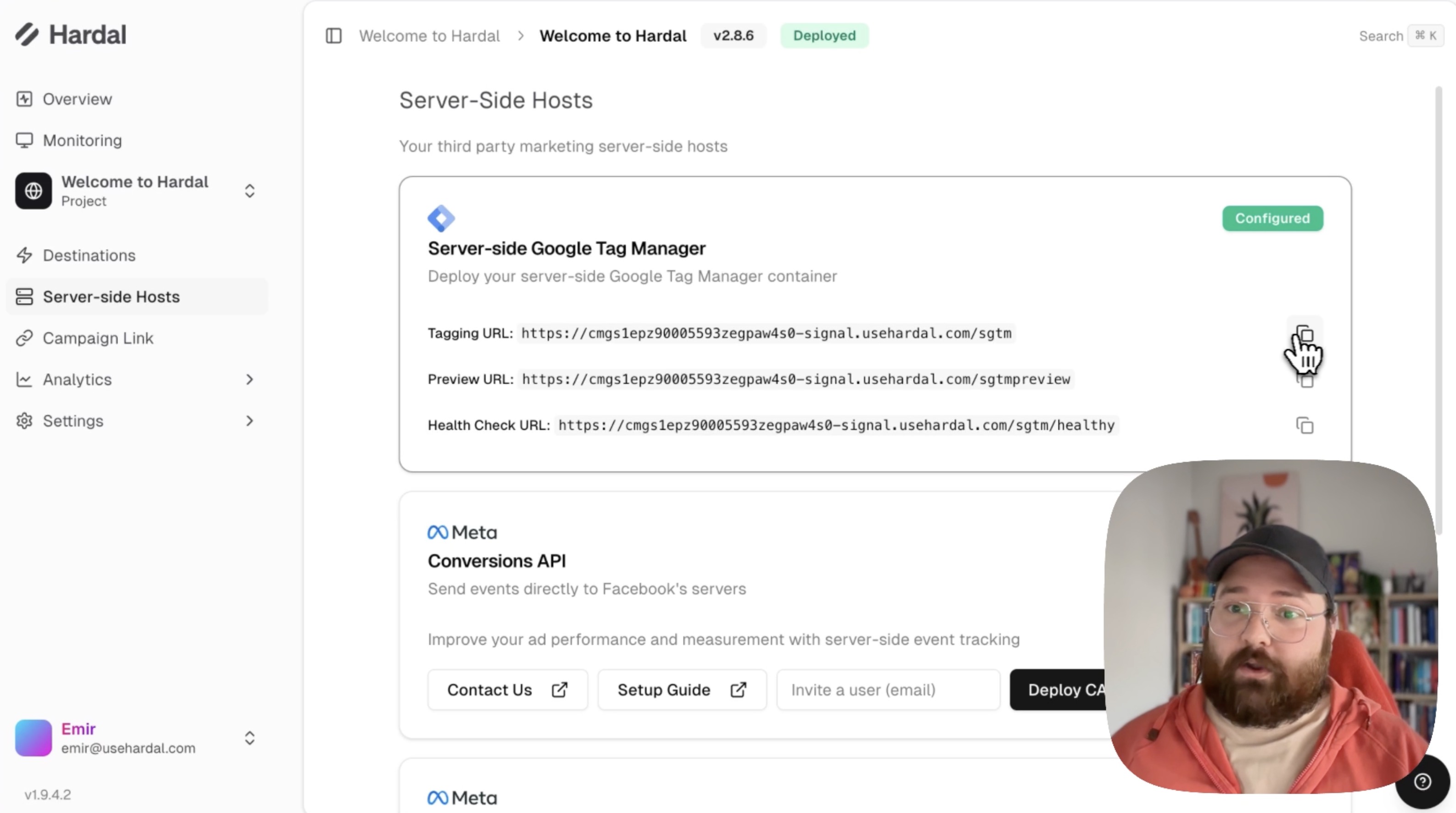
Copy the Tagging Server URL - you'll need this later.
Step 2: Create Server Container in GTM
Access Google Tag Manager
Go to Google Tag Manager and log in to your account.
Create New Container
- Click on your account name
- Find your desired property
- Click the three dots (⋮) next to your existing container
- Select Create Container
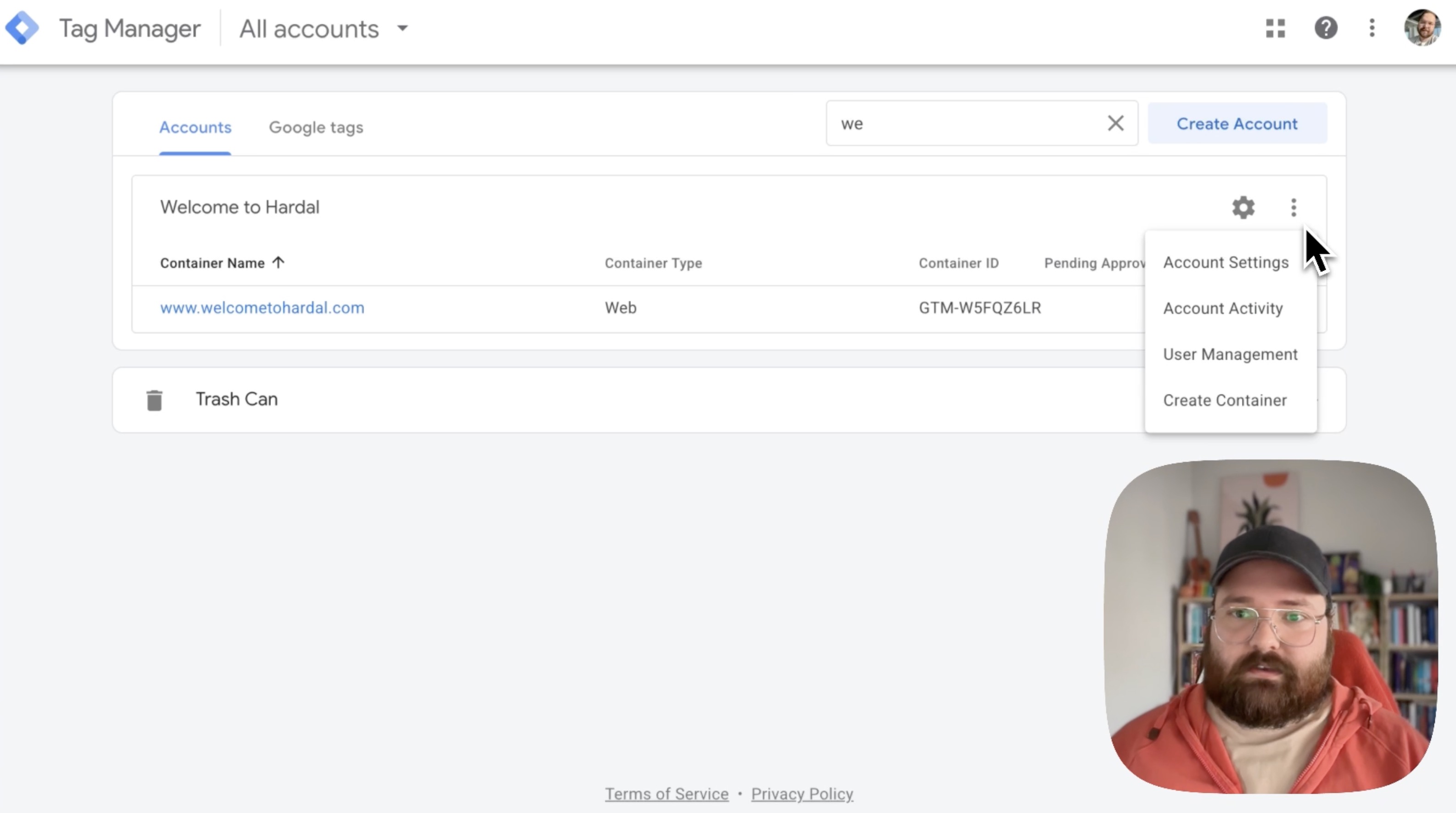
Configure Container Settings
Container Name: Give it a descriptive name (e.g., "Server - Hardal" or "Company Website - Server")
Target Platform: Select Server
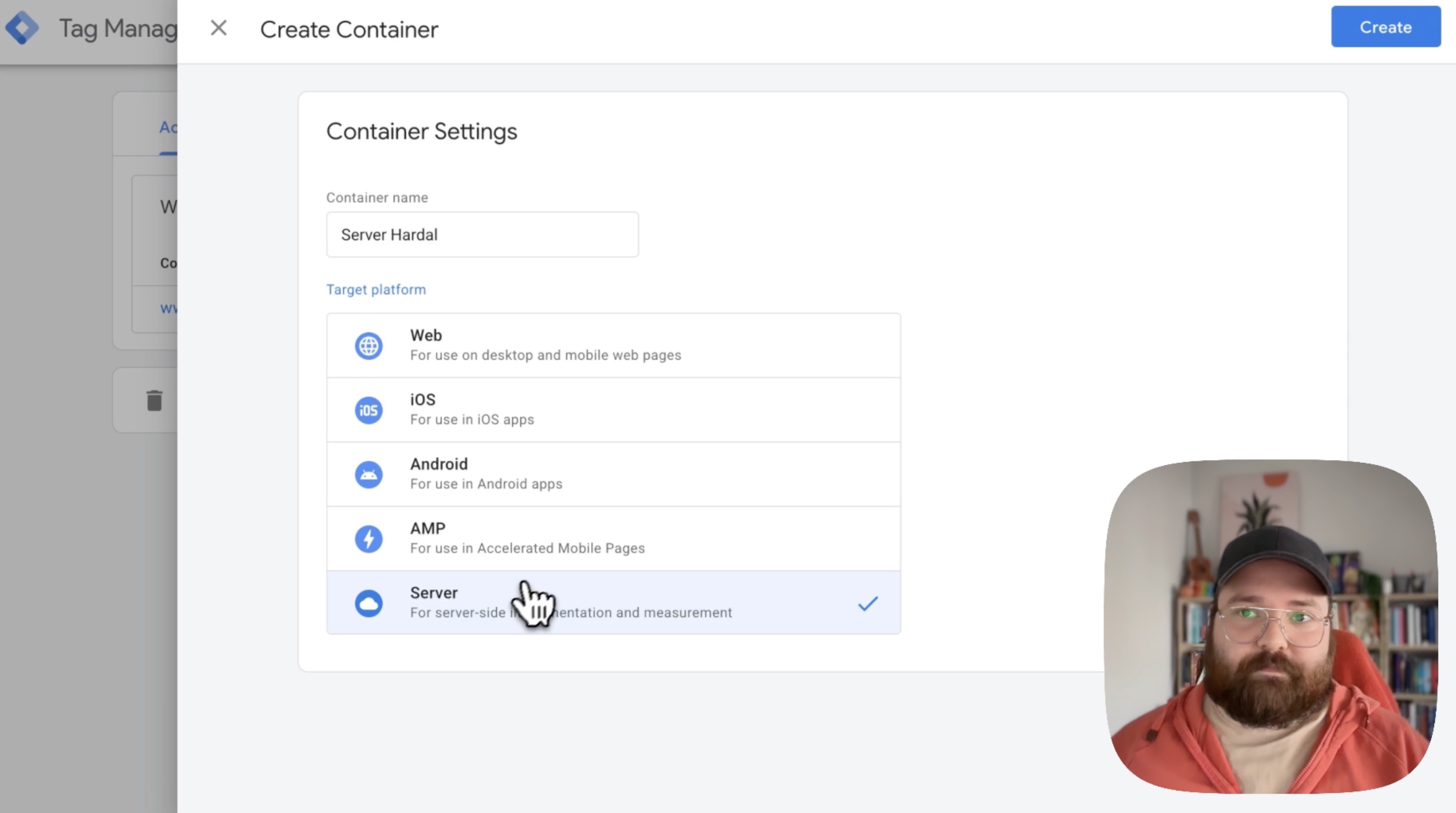
Click Create to proceed.
Step 3: Choose Provisioning Method
GTM will ask how you want to provision your tagging server. You have two options:
Option 1: Automatically provision (Not needed)
This uses Google Cloud directly - skip this option.
Option 2: Manually provision tagging server (Choose this)
This allows you to use Hardal's infrastructure.
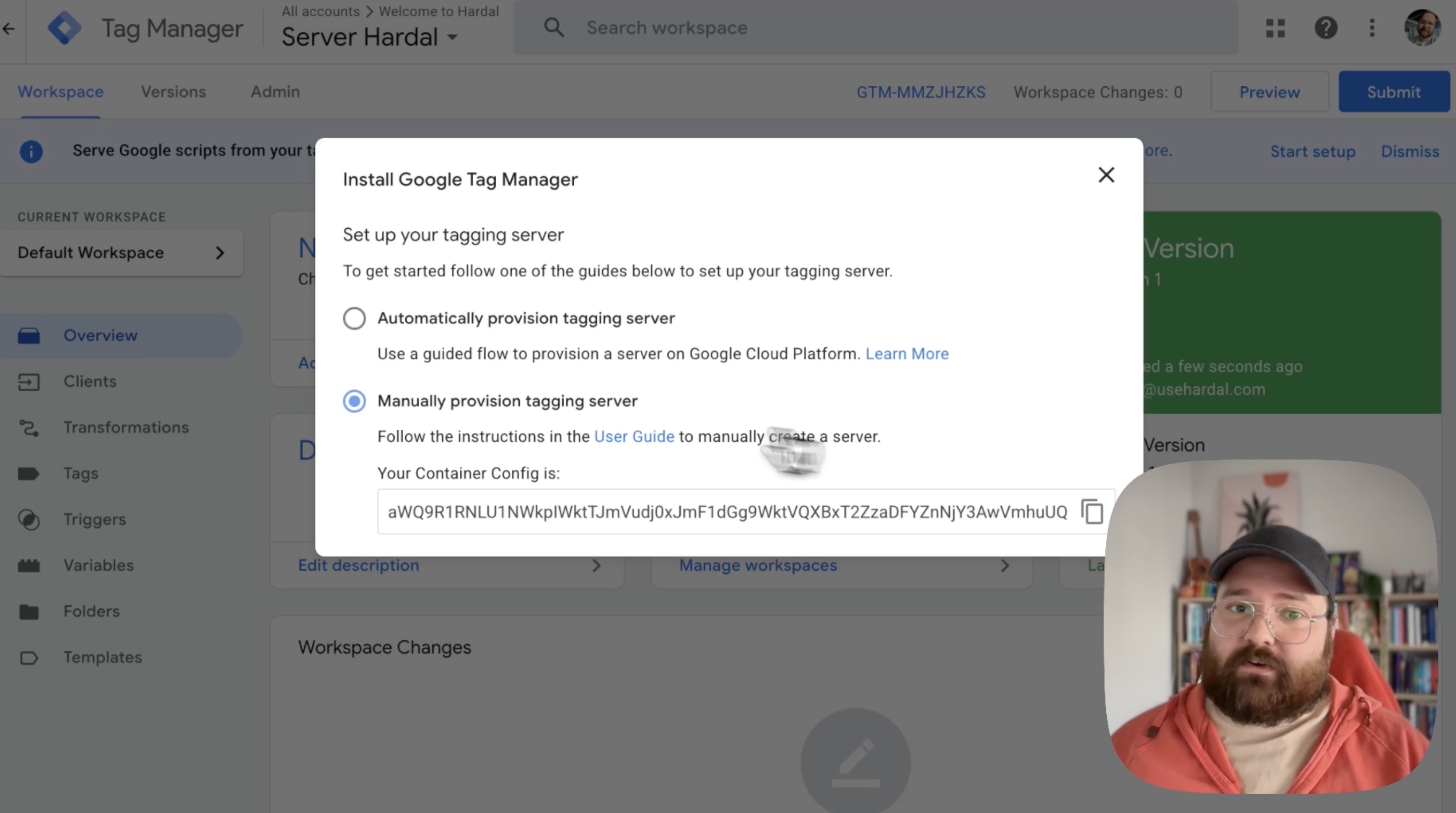
Select "Manually provision tagging server" and click Next.
Step 4: Get Container Configuration
GTM will display your Container Config - a long string of encoded data.
Important: Copy this entire configuration string. You'll need to send it to Hardal.
Send Configuration to Hardal
Email the Container Config to Hardal support:
- Email: support@usehardal.com
- Subject: "Server-Side GTM Activation - [Your Signal Name]"
- Include: Your signal ID and the Container Config string
Hardal will activate your server container, typically within 1 business day.
Step 5: Configure Server URL in GTM
After Hardal activates your container:
Navigate to Container Settings
- In Google Tag Manager, go to Admin
- Under your server container, click Container Settings
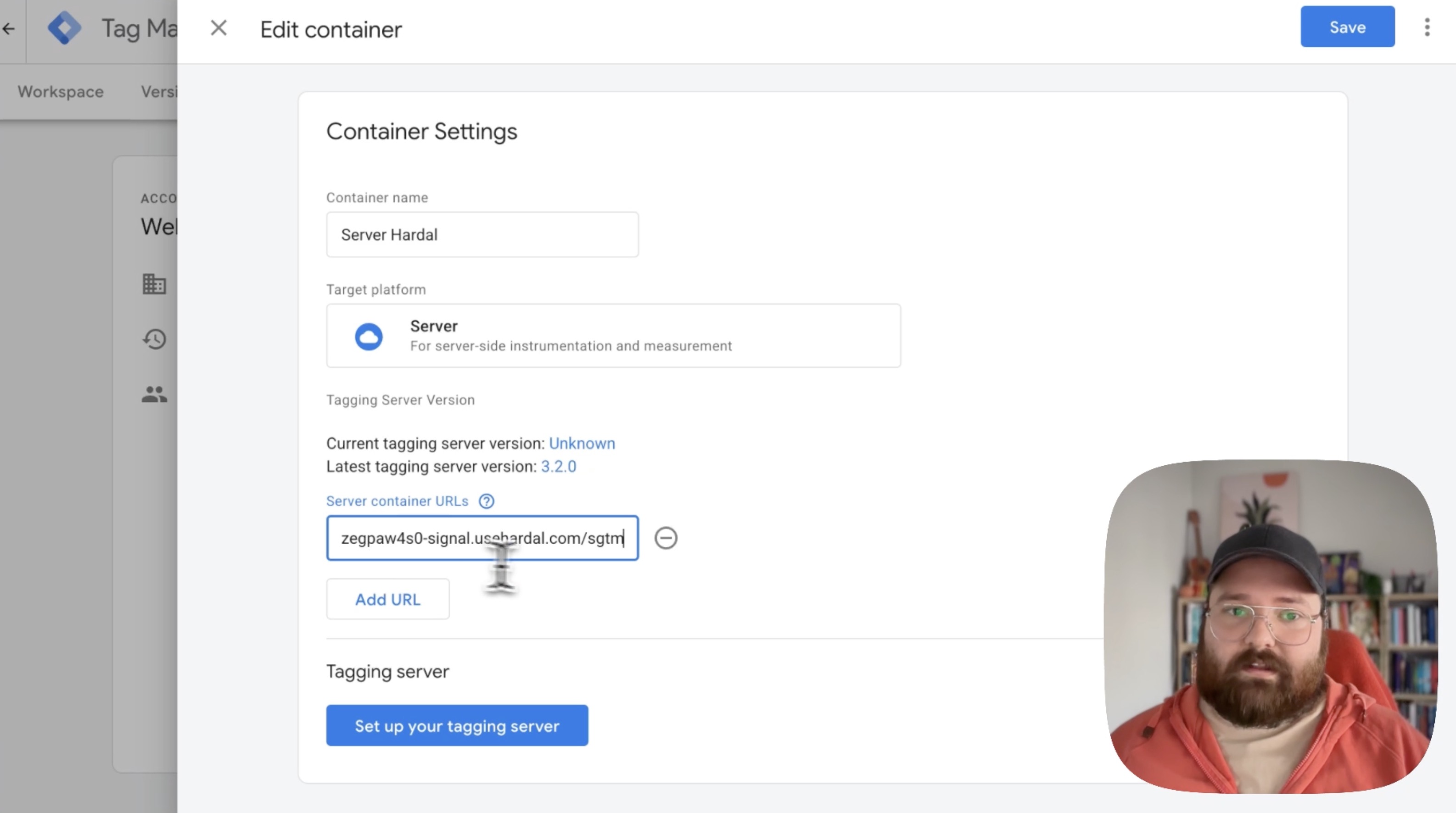
Add Hardal Server URL
- Click + Add URL in the Server Container URLs section
- Paste the Tagging Server URL you copied from Hardal earlier
- Click Save
Your configuration should now show:
- Container Config: Configured
- Server Container URL: Your Hardal URL
Step 6: Set Up Tags in Server Container
Now you can start adding tags to your server container:
Common Server-Side Tags:
Google Analytics 4:
- Enhanced measurement
- E-commerce tracking
- Custom events
Meta Conversion API:
- Facebook Pixel events
- Enhanced matching
- Custom conversions
Google Ads:
- Conversion tracking
- Remarketing
- Enhanced conversions
Your Server-Side Google Tag Manager is now configured and running on Hardal's infrastructure, providing improved performance and enhanced data control for your analytics and marketing tags.
For a more detailed walkthrough, check out our step-by-step guide: How To Set Up Server Side Google Tag Manager Via Hardal