The distinct function in Hardal allows you to identify users across devices and platforms, even in a cookieless environment. This guide shows you how to implement it properly.
What is the Distinct Function?
The distinct function lets you send user information to Hardal, enabling user identification even when they switch devices or connections. This is particularly valuable for:
- Cross-device tracking
- Cross-platform analytics
- User journey mapping
- Personalized user experiences
Important: Always obtain user consent before collecting and storing their personal information. Ensure compliance with your privacy policy and relevant regulations.
Accessing the Documentation
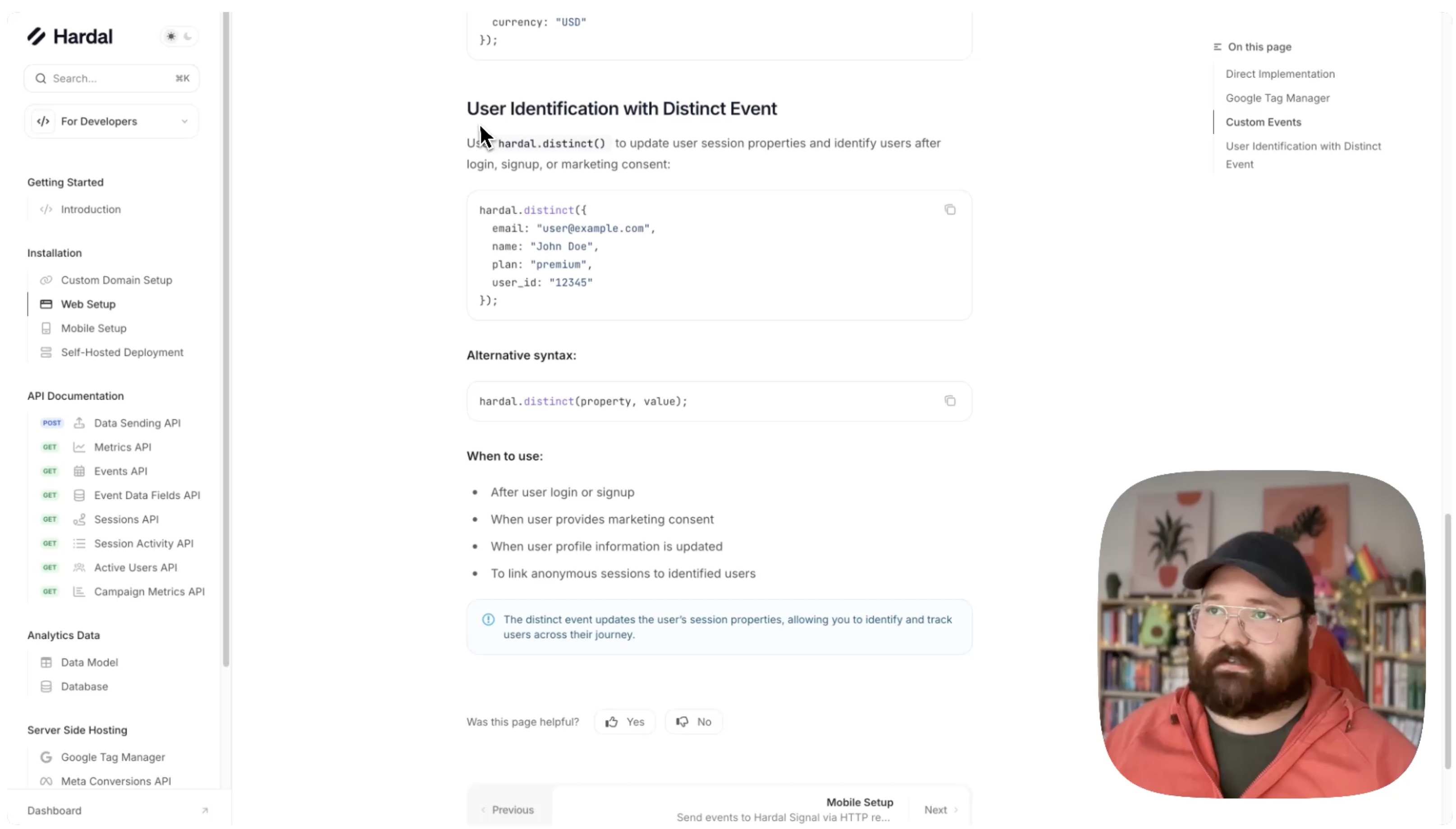
Navigate to Hardal documentation, then go to: For Developers > Web Setup
Scroll down to find the section on User Identification with Distinct Event.
Implementation Methods
You can implement the distinct function in two ways:
Method 1: Direct HTML Implementation
Add this script directly to your website's HTML:
<script>
  hardal.distinct({
    name: "John Doe",
    email: "john@example.com",
    phone: "+1234567890",
    country: "US"
    // Add any other user properties
  });
</script>
Method 2: Google Tag Manager Implementation
Create a new tag in GTM using Custom HTML with the distinct function. This follows the same pattern as setting up custom events.
Data Security
All information sent through the distinct function is automatically hashed by Hardal, ensuring data security. This means:
- User data is encrypted
- Personal information is protected
- Compliance with privacy standards is maintained
Viewing User Data
After implementing the distinct function, you can view user details in your Hardal dashboard:
- Navigate to Analytics > Sessions
- Click on any session to view details
- You'll see the user information you've sent through the distinct function
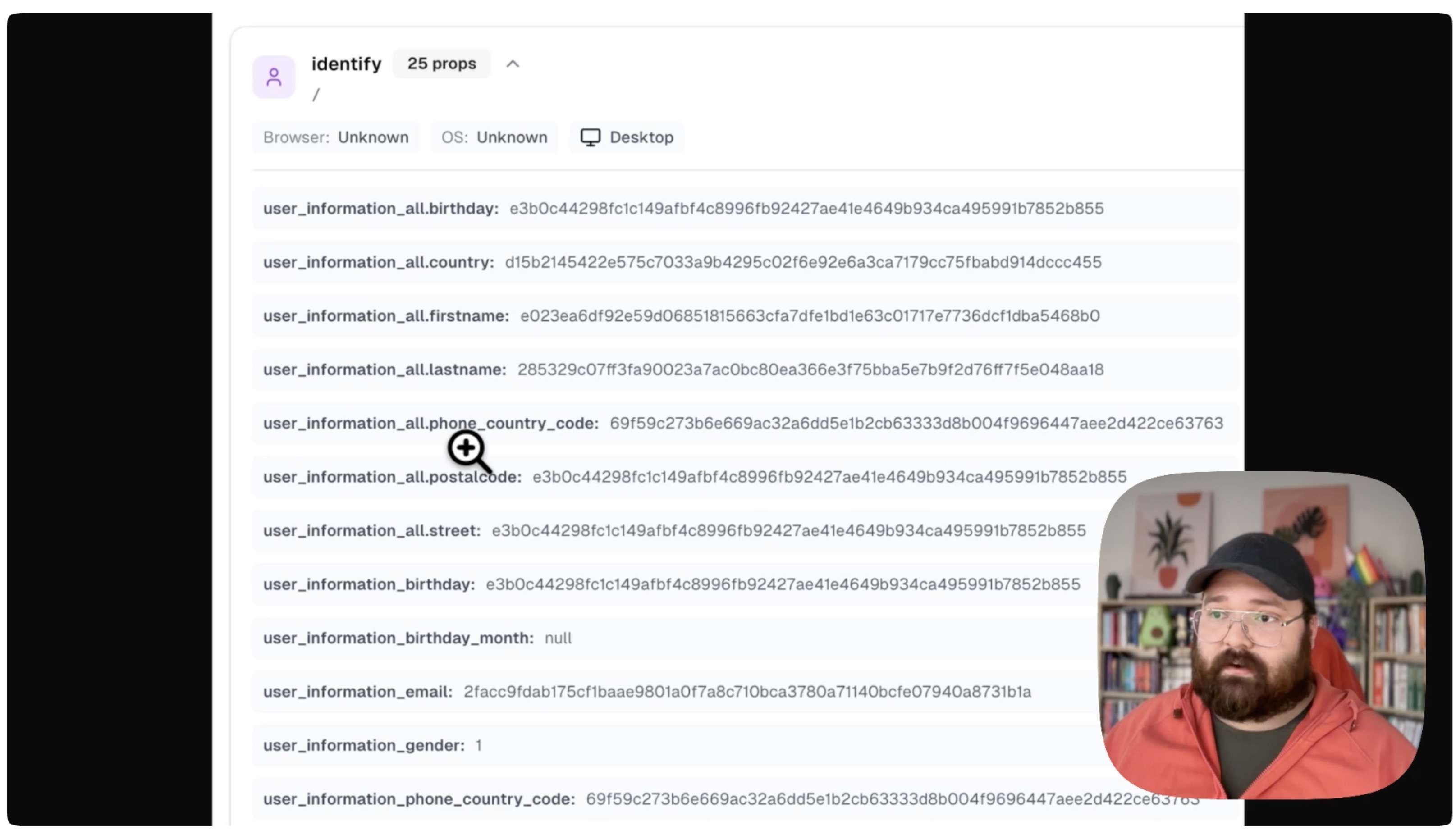
Example data you can track:
- Name
- Phone number
- Country
- Custom properties relevant to your business
Best Practices
- Collect Only Necessary Data: Only request and store information you actually need
- Get Consent: Always obtain explicit user consent before tracking
- Update Information: Call the distinct function when user information changes
- Test Thoroughly: Verify data is being sent and stored correctly before going live
For advanced cross-device and cross-platform cookieless analytics, implementing the distinct function is essential for maintaining accurate user identification.
For a more detailed walkthrough, check out our step-by-step guide. How To Set Up Distinct Function