Your signal settings control how Hardal collects and processes data for your website or application. This guide walks you through all available settings and their purposes.
Accessing Signal Settings
Navigate to your Hardal dashboard, select your signal, and click Settings in the left menu.
General Settings
The General section allows you to configure basic signal information:
- Signal Name: Update your signal's display name
- Description: Add or edit a description for your signal
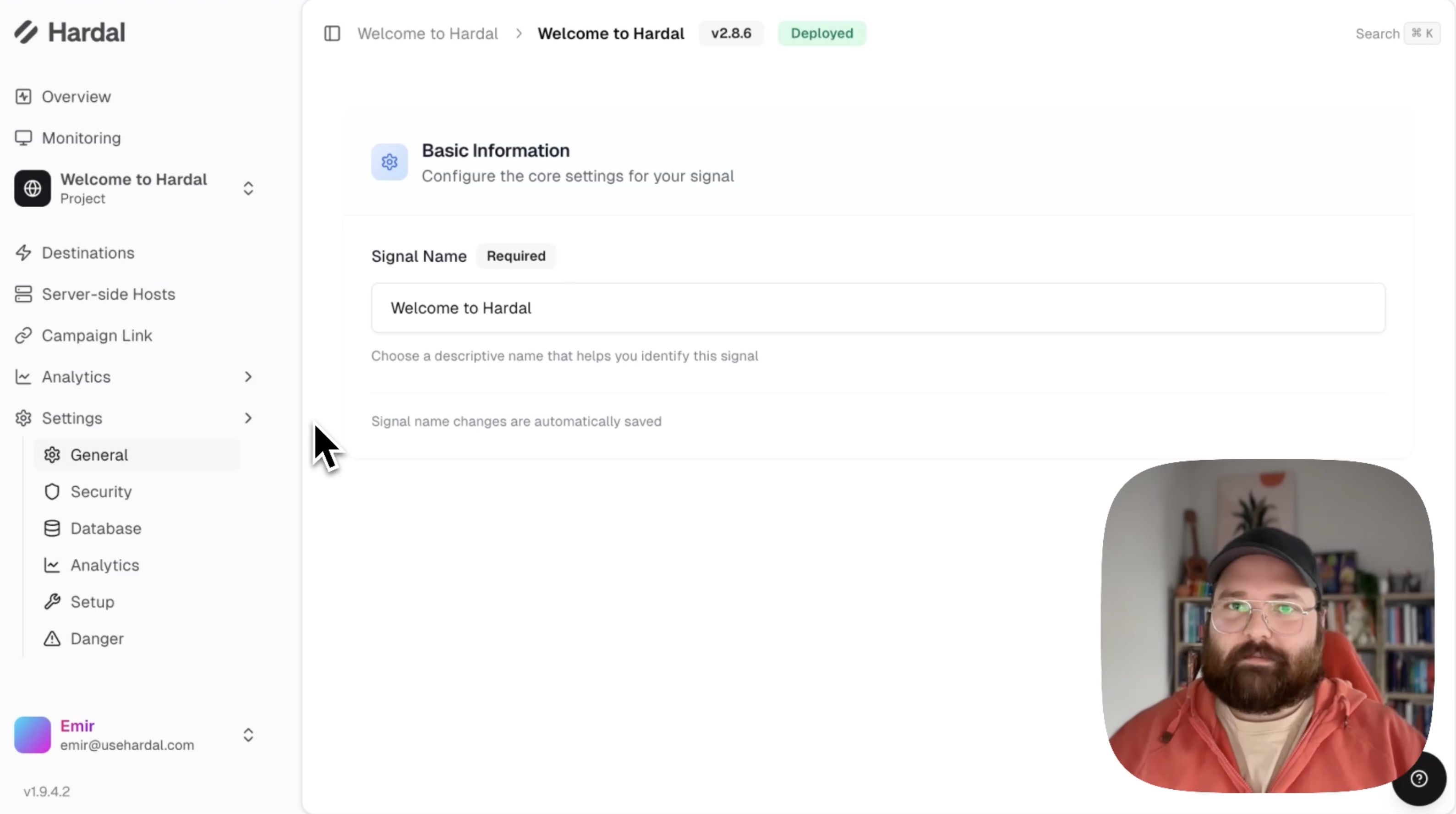
A descriptive name and clear description help you identify signals quickly, especially when managing multiple properties.
Security Settings
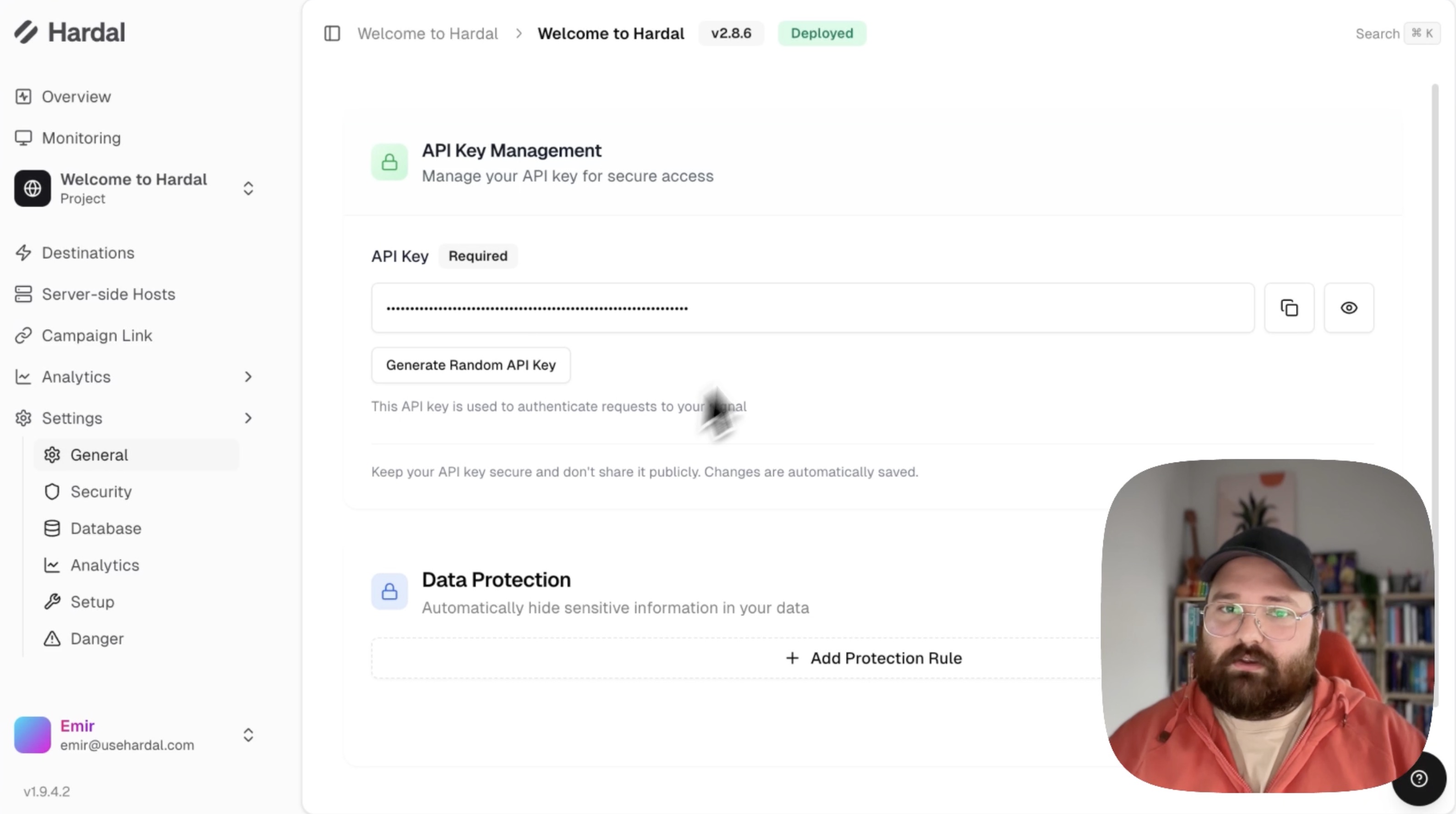
The Security section manages your API authentication:
API Keys
- View your current API key
- Generate new API keys when needed
- Revoke compromised keys
ClickHouse Integration
If you're using tools with ClickHouse integration:
- Use the provided credentials
- Connect your external tool to Hardal's database
- Query your data directly
This enables advanced analytics and custom reporting through external business intelligence tools.
Analytics Settings
The Analytics section configures data processing preferences:
Time Zone Configuration
Set your preferred time zone for accurate reporting. This affects:
- Event timestamps in reports
- Date range calculations
- Scheduled report generation
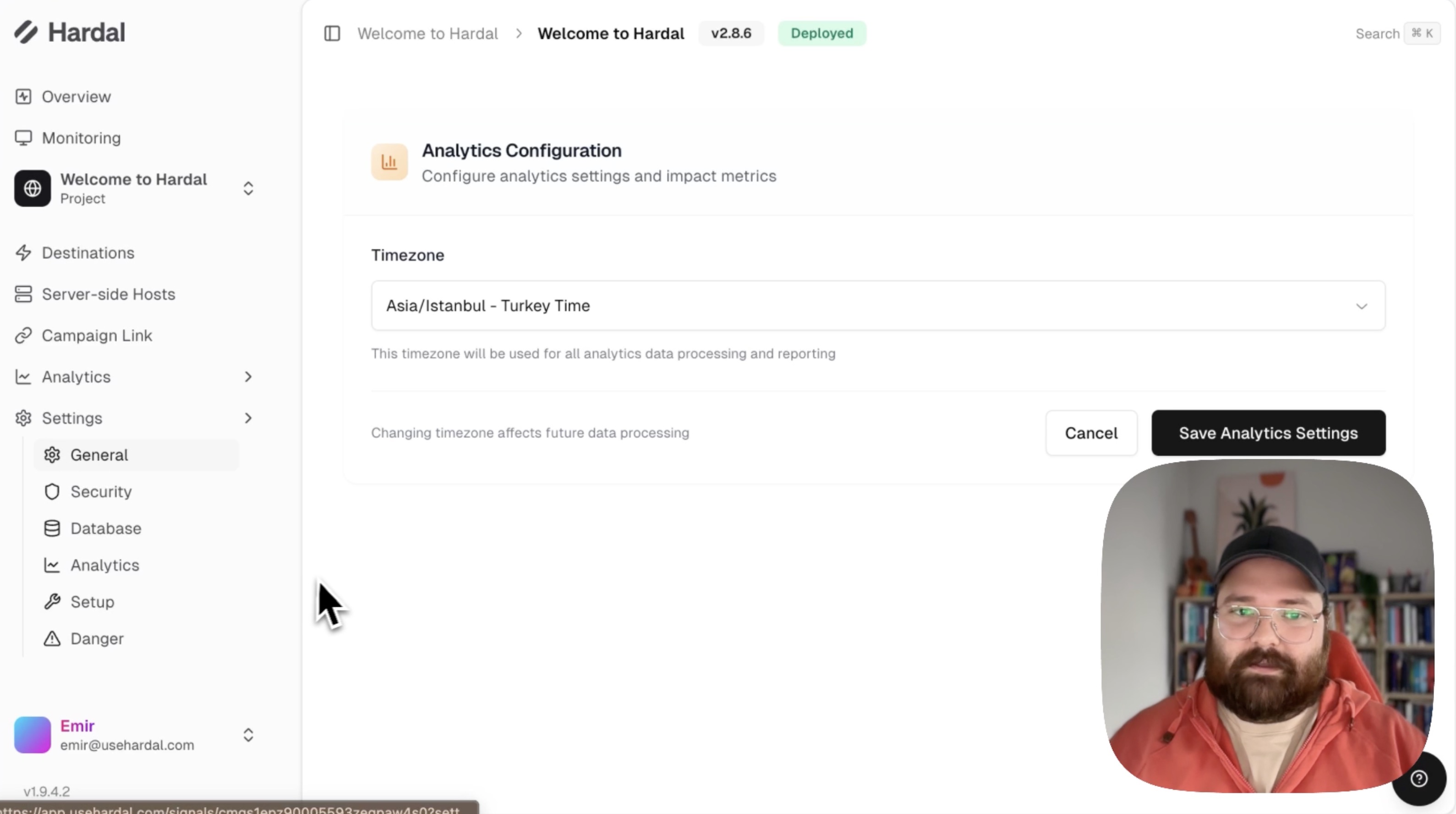
Select the time zone that matches your business operations for consistent reporting.
Setup Settings
The Setup section contains implementation-related information:
- Tracking Script: Copy your signal's tracking code
- Installation Instructions: Step-by-step setup guides
- Custom Domain Configuration: DNS settings for first-party tracking
- Integration Code: Code snippets for various platforms
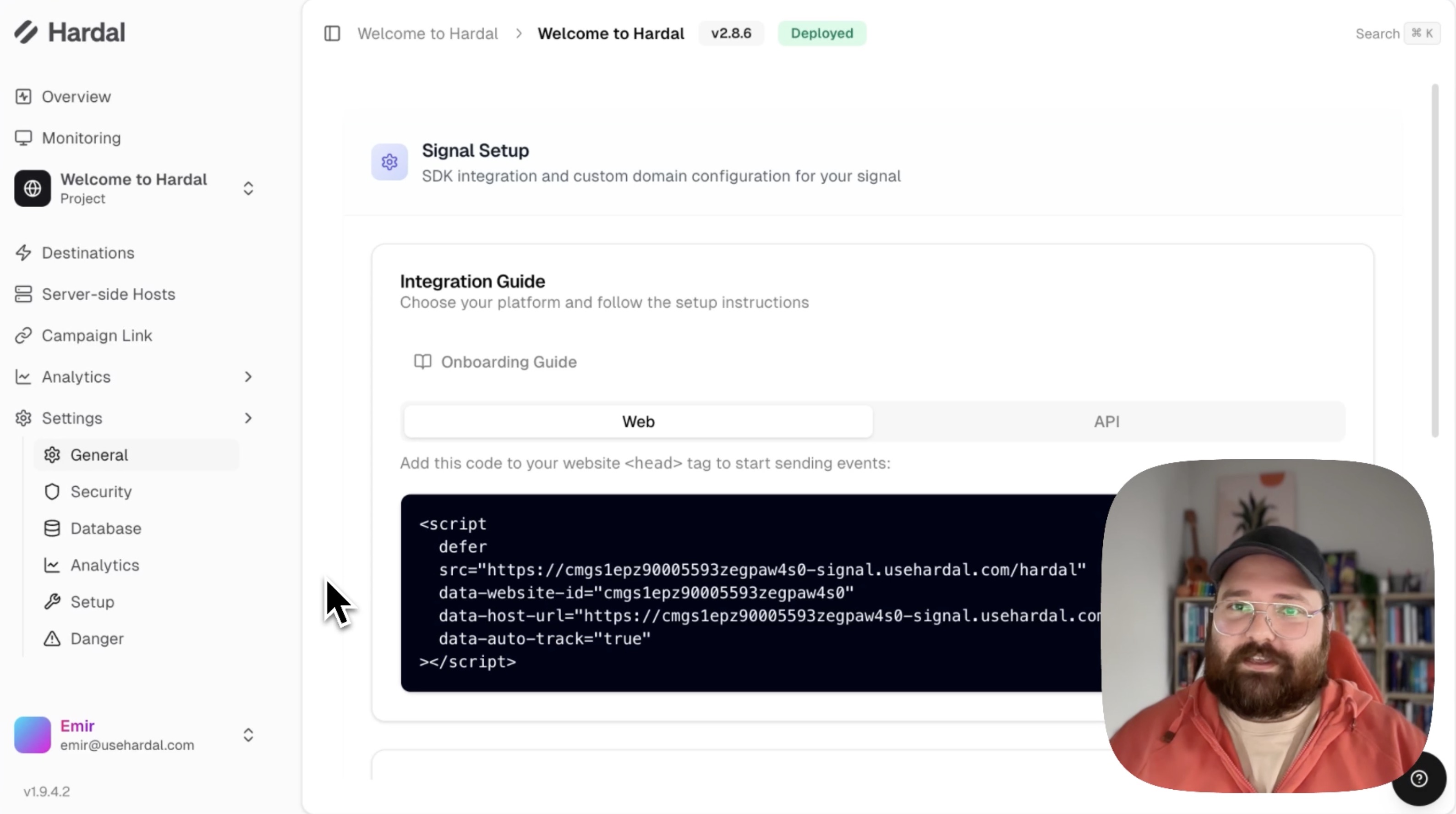
This section is your reference for all technical implementation details.
Danger Zone
The Danger section contains actions that significantly impact your signal:
Available Actions:
Duplicate Signal: Create a copy of your signal with all settings
- Useful for testing or creating similar configurations
- Creates a new signal with identical setup
Cancel Subscription: Stop your Hardal subscription
- Billing will cease
- Data access will be affected
Delete Signal: Permanently remove your signal
- This action cannot be undone
- All associated data will be deleted
- Consider exporting important data first
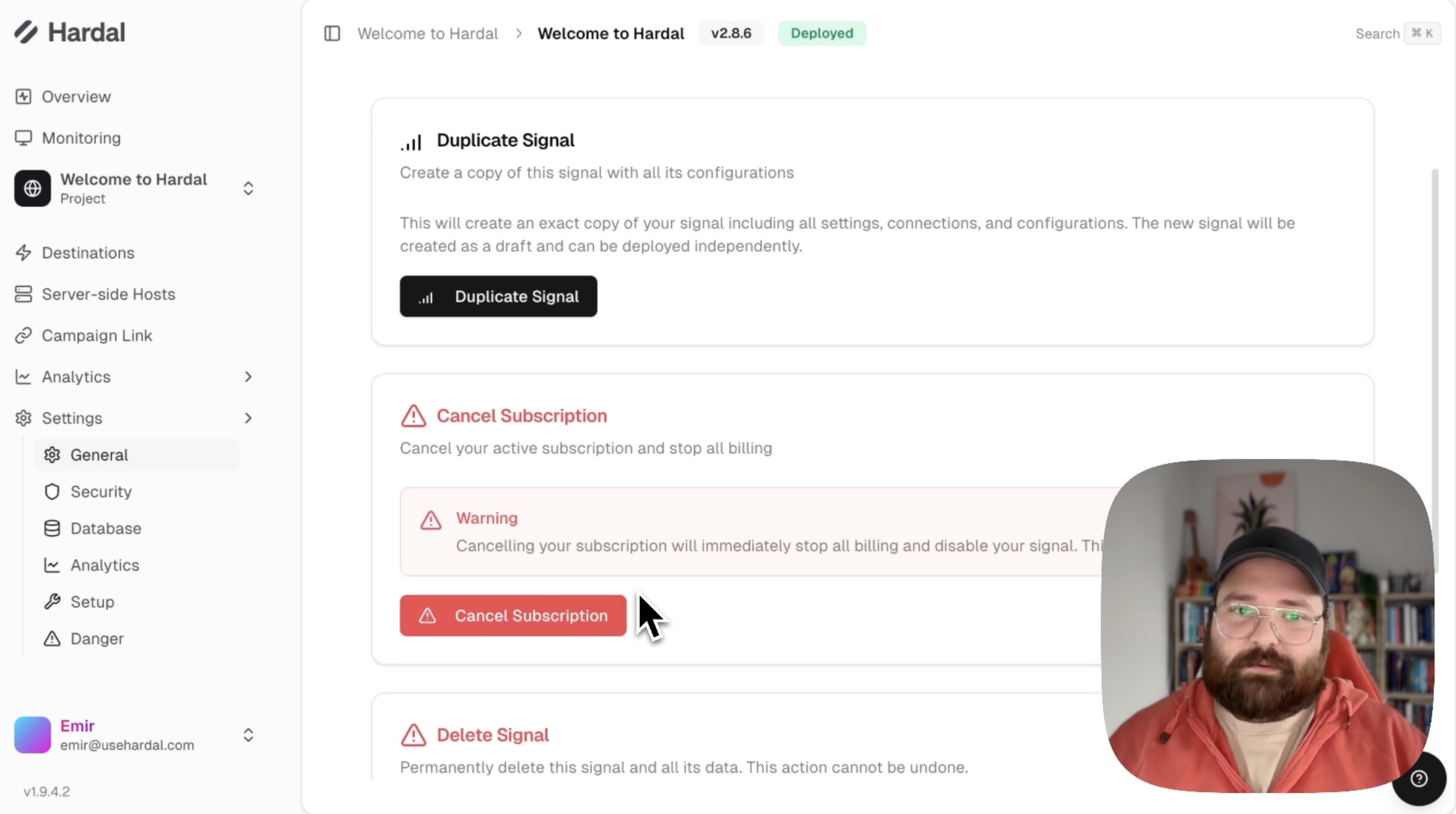
Warning: Actions in this section have permanent consequences. Always confirm you want to proceed before taking action.
Best Practices
- Regular Security Audits: Rotate API keys periodically
- Time Zone Consistency: Set time zone during initial setup and avoid changing it
- Backup Important Data: Export critical data before making major changes
- Document Changes: Keep notes when modifying settings
- Test Before Production: Use duplicate signals for testing new configurations
Proper signal configuration ensures accurate data collection and secure access to your analytics information.
For a more detailed walkthrough, check out our step-by-step guide. Hardal Dashboard - Project Settings